Set up wireless Samsung ML-2550 printer in windows 7 where printer connected to Windows XP
Step 1: Go to Start->Devices and Printers
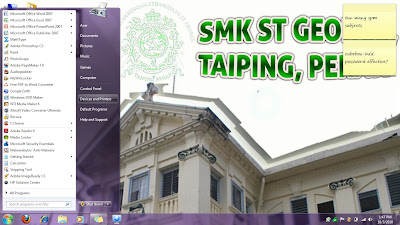
[img]http://img179.imageshack.us/img179/7434/57764517.jpg[/img]
Step 2: Click 'Add A Printer'
[img]http://img13.imageshack.us/img13/4062/78219108.jpg[/img]
Step 3: In a pop up window choose 'Add a local printer'
[img]http://img339.imageshack.us/img339/9412/38711372.jpg[/img]
Step 4: Choose 'Use an existing port' and click 'Next'
[img]http://img220.imageshack.us/img220/2320/35888163.jpg[/img]
Step 5: If unable to find Samsung Printer Driver, do not panic. Just click 'Windows Update' and wait.
[img]http://img232.imageshack.us/img232/3601/89459609.jpg[/img]
[img]http://img532.imageshack.us/img532/1888/53374569.jpg[/img]
[img]http://img440.imageshack.us/img440/2201/68726081.jpg[/img]
Step 6: Choose 'Samsung ML-2550 series' and not 'Samsung ML-2550 series PCL 6'.
[img]http://img683.imageshack.us/img683/2369/44321034.jpg[/img]
Step 7: Click 'Next'.
[img]http://img80.imageshack.us/img80/6352/75650313.jpg[/img]
Step 8: Please choose 'share this printer' and click 'Next'.
[img]http://img138.imageshack.us/img138/4521/41916783.jpg[/img]
Step 9: Click 'Finish' to finish up installation.
[img]http://img192.imageshack.us/img192/1365/40438009.jpg[/img]
Step 10: Go to Start->Devices and Printers again. Right click on Samsung ML-2550 printer icon and choose 'printer properties'.
[img]http://img402.imageshack.us/img402/3508/83170442.jpg[/img]
Step 11: Select 'Ports' Tab.
[img]http://img297.imageshack.us/img297/9845/11106369.jpg[/img]
Step 12: Click 'Add Port->Local Port->New Port'.
[img]http://img193.imageshack.us/img193/9065/88471263.jpg[/img]
Step 13: Enter the wireless network printer link in 'Enter Port Name'
[img]http://img201.imageshack.us/img201/5710/81528168.jpg[/img]
Step 14: Click 'Apply' and 'Ok'.
[img]http://img528.imageshack.us/img528/1538/58586256.jpg[/img]
[img]http://img265.imageshack.us/img265/2289/19908860.jpg[/img]
Step 15: To print a brochure, click 'print preview'.
[img]http://img221.imageshack.us/img221/3542/95591126.jpg[/img]
Step 16: Click 'File->Page Set Up'
[img]http://img340.imageshack.us/img340/4669/36410363.jpg[/img]
Step 17: Select 'Landscape'.
[img]http://img96.imageshack.us/img96/9936/27642334.jpg[/img]
Step 18: Finally try to 'print preview' again and print the brochure.
[img]http://img291.imageshack.us/img291/2863/56905486.jpg[/img]


